
This tutorial covers how to recognize the non-trip tasks assigned to you and how to complete them. Let’s begin!
Audio unavailable. Please try again later.
How These Tasks Are Displayed on the Home Screen (Trip Dashboard)
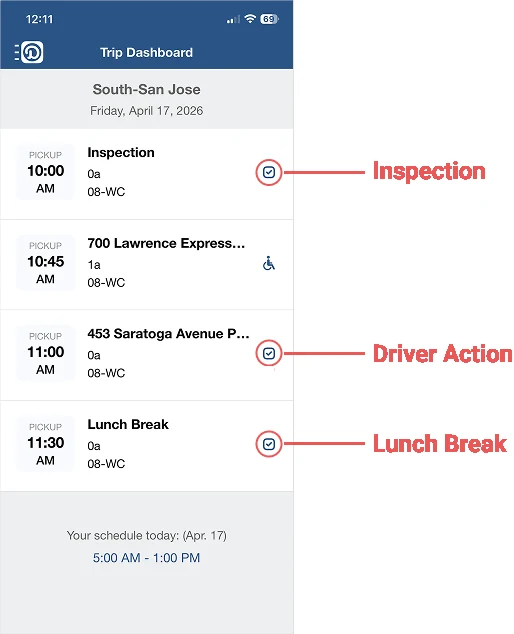
You can update these tasks in the same way as trips.
Update Lunch Break
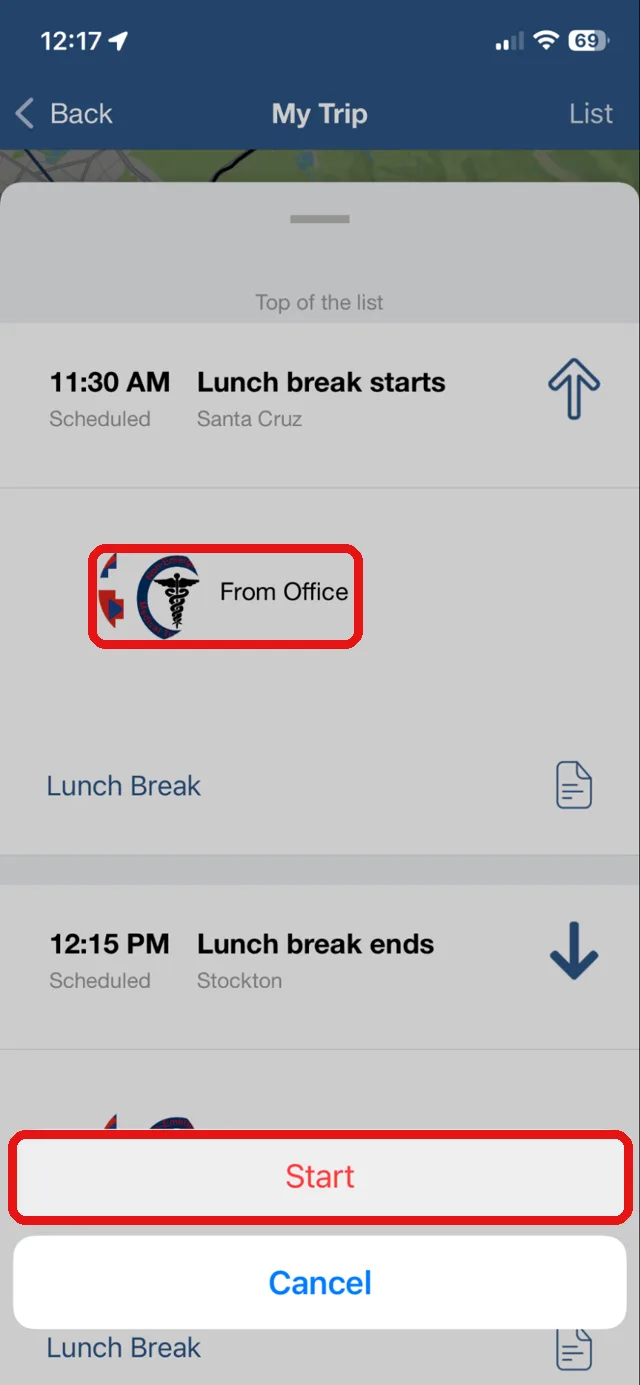
Tap the lunch break on the Home screen (Trip Dashboard) to open the Lunch Break screen.
Tap the photo or the “From Office” text.
Tap “Start” or “End”.
Update Driver Action
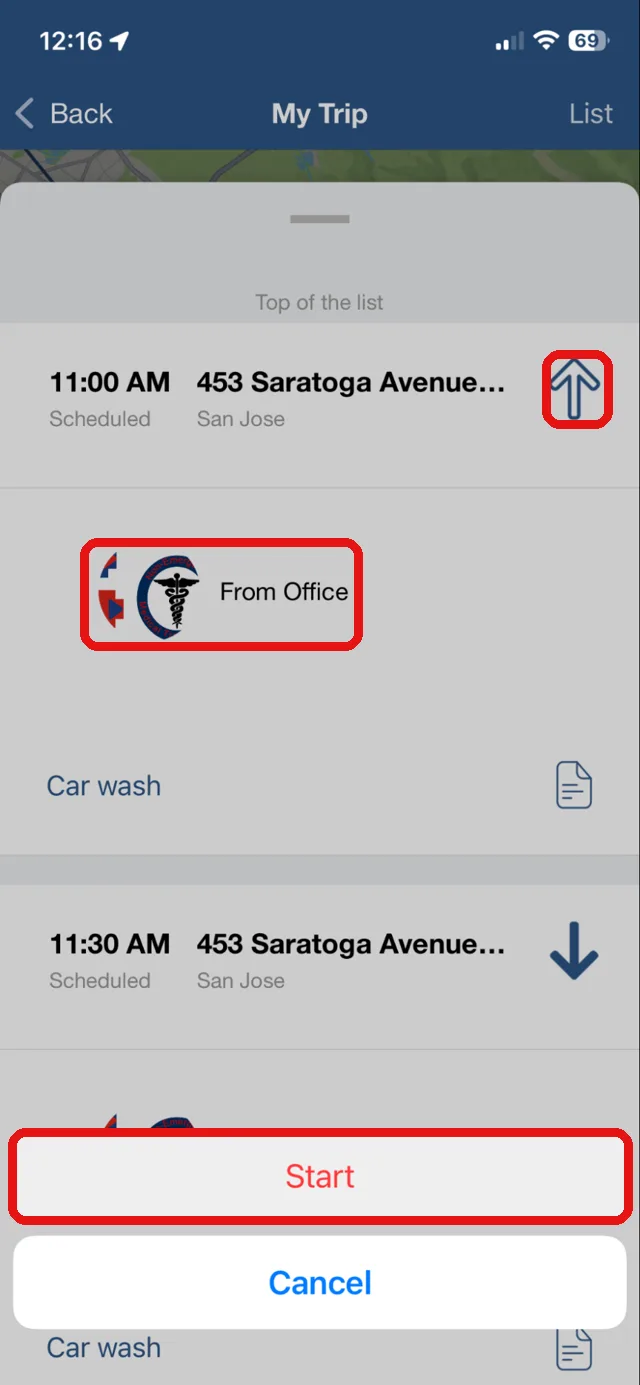
Tap the Driver Action on the Home screen (Trip Dashboard) to open the Driver Action screen.
Tap the arrow next to the address to navigate there.
Tap the photo or the “From Office” text.
Tap “Start” or “End”.
Perform Inspection
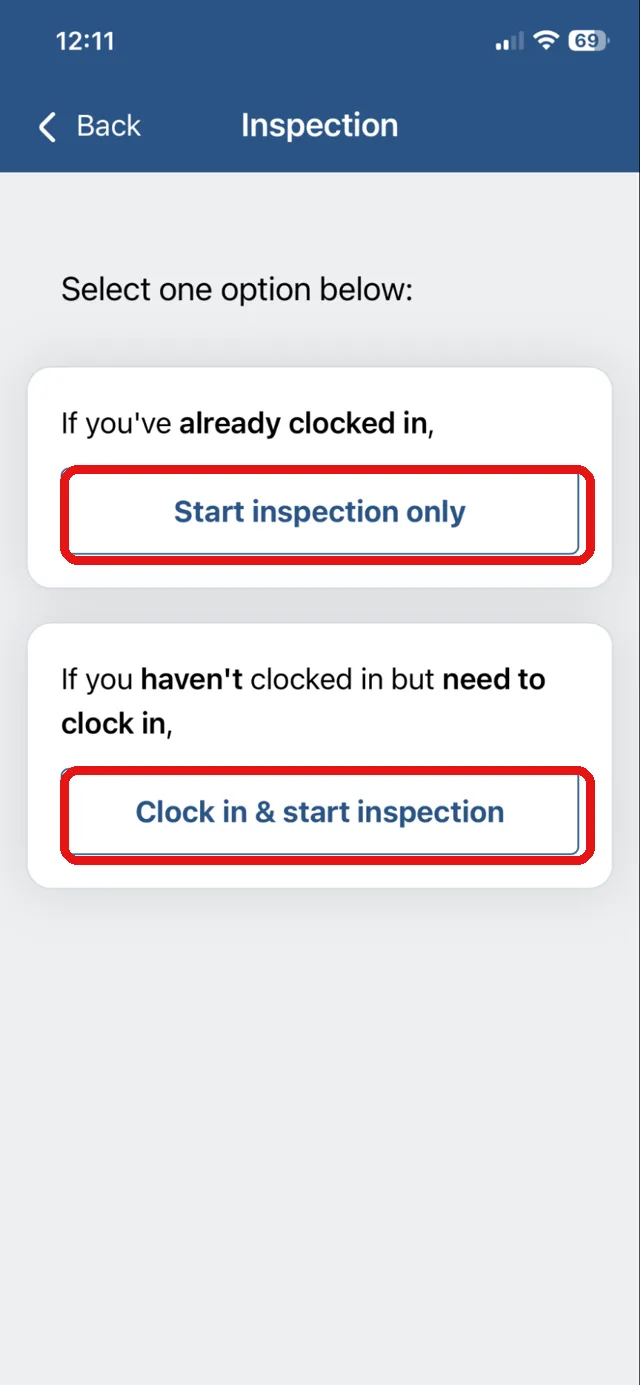
Tap the Inspection on the Home screen (Trip Dashboard) to open the Inspection screen.
Tap one of the buttons to open the Inspection Procedure screen.
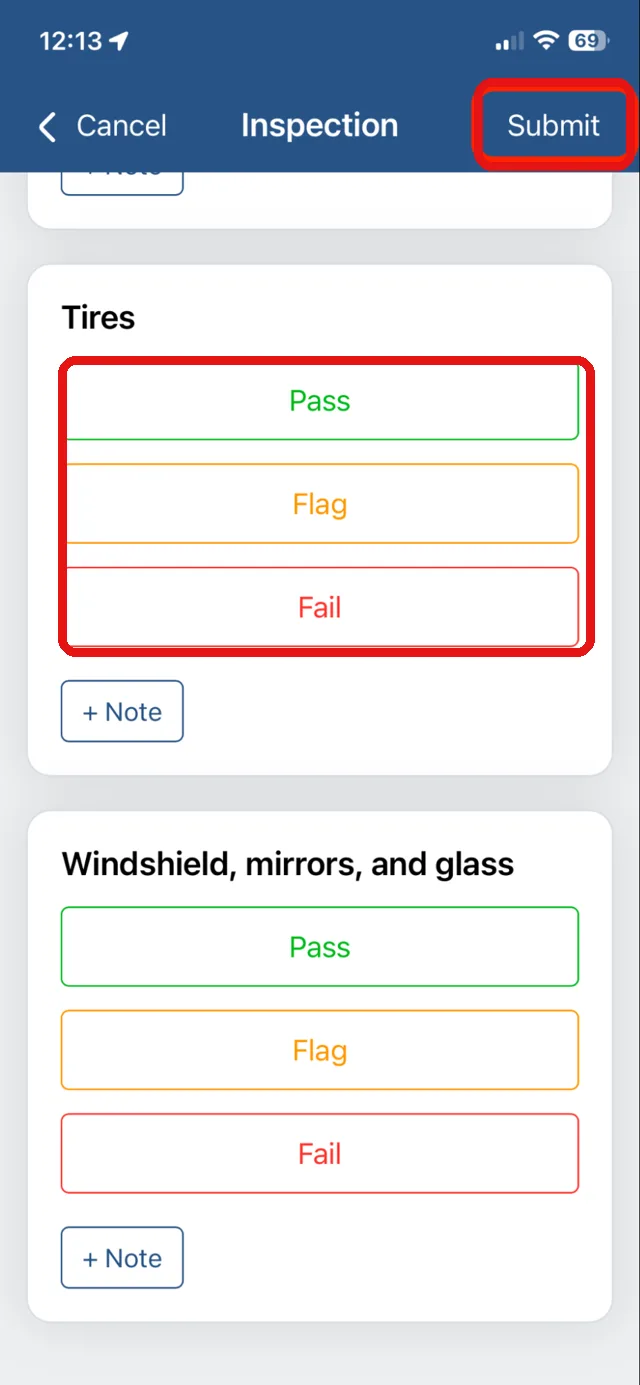
For each item on the list, tap the Pass, Flag or Fail button according to your inspection results.
After you complete the list, tap Submit to submit the results.
After submitting, you’re taken back to the Home or Trip Dashboard screen.
Cómo actualizar el descanso para el almuerzo, la acción del conductor y la inspección
Este tutorial explica cómo identificar las tareas no relacionadas con viajes que se te han asignado y cómo completarlas. ¡Comencemos!
Audio no disponible. Inténtalo de nuevo más tarde.
Cómo se muestran estas tareas en la pantalla de inicio (Trip Dashboard)
Puedes actualizar estas tareas de la misma manera que los viajes.
Inspection - Inspección
Driver Action - Acción del conductor
Lunch Break - Pausa para el almuerzo
Actualizar la pausa para el almuerzo
Toca la pausa para el almuerzo en la pantalla de inicio (Trip Dashboard) para abrir la pantalla “Lunch Break”.
Toca la foto o el texto “From Office”.
Toca “Start” o “End”.
Actualizar la acción del conductor
Toca la acción del conductor en la pantalla de inicio (Trip Dashboard) para abrir la pantalla “Driver Action”.
Toca la flecha junto a la dirección para navegar hasta ella.
Toca la foto o el texto “From Office”.
Toca “Start” o “End”.
Realizar la inspección
Toca la inspección en la pantalla de inicio (Trip Dashboard) para abrir la pantalla “Inspection”.
Toca uno de los botones para abrir la pantalla “Inspection Procedure”.
Para cada elemento de la lista, toca el botón “Pass”, “Flag” o “Fail” según los resultados de tu inspección.
Una vez que completes la lista, toca “Submit” para enviar los resultados.
Después de enviar, volverás a la pantalla de inicio (Trip Dashboard).