
Check Your Trips for Tomorrow or a Future Date in Your Duet Driver App Account
After your dispatchers finish scheduling trips for tomorrow, they will ask you to check your schedule in the app.
Audio unavailable. Please try again later.
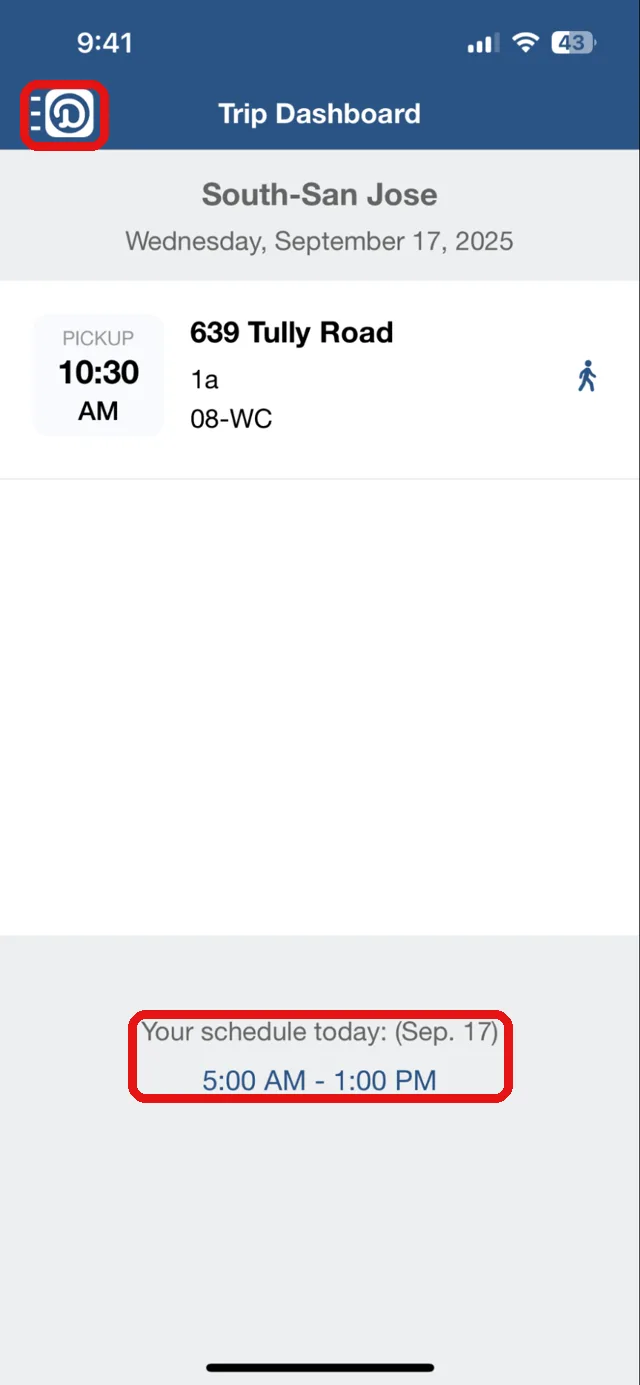
1. On the “Trip Dashboard” or home screen, tap the Menu icon (top left) and tap Schedule & Clock in/out.
Or, you can see the text “Your schedule today” and your hours listed at the bottom. Tap the dark blue text (the hours).
If you’re not scheduled for specific hours, you will see the text “Not scheduled yet” instead. You can still tap the dark blue text.
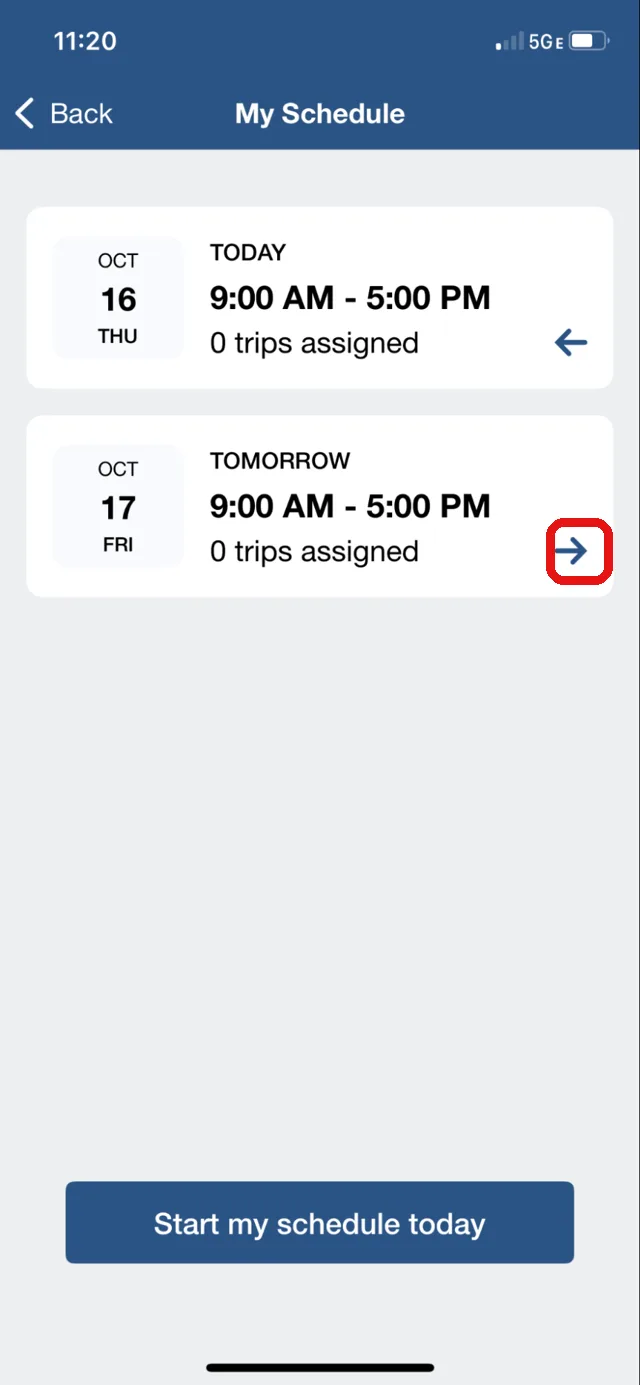
2. Doing so takes you to the My Schedule screen. You can see two blocks on the screen: one is your schedule for today, and the other is your schedule for tomorrow.
Tap the arrow in the Tomorrow block.
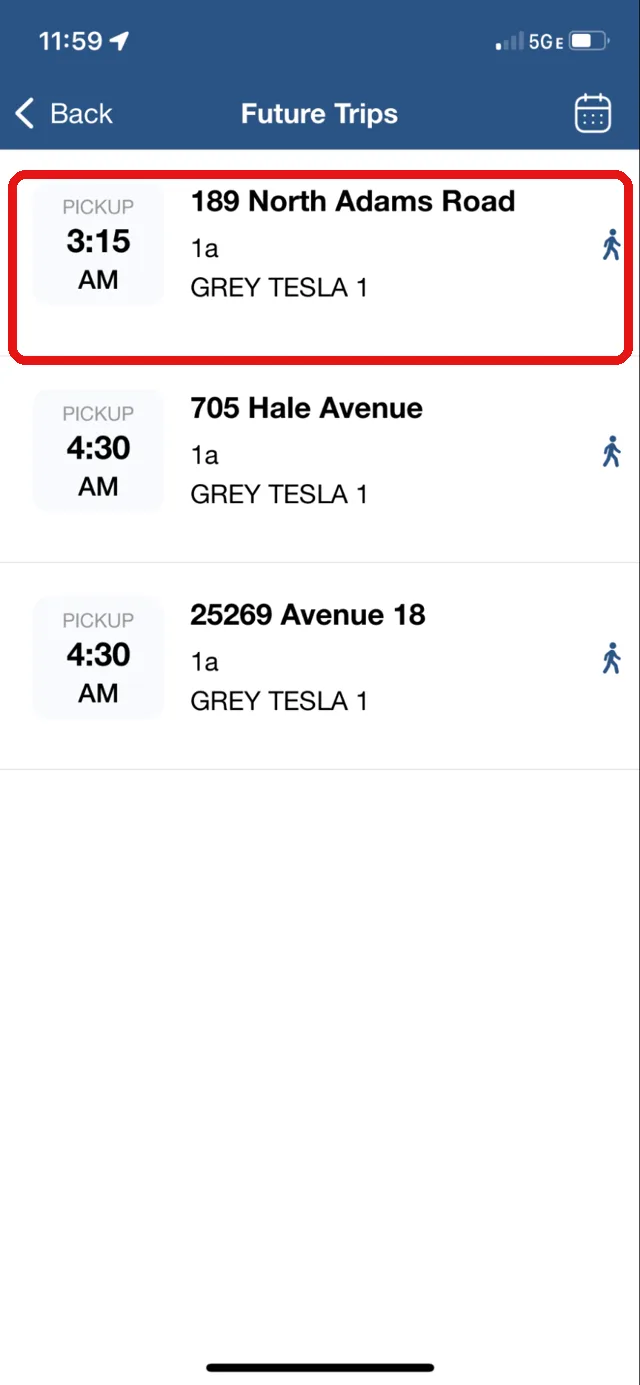
3. Doing so takes you to the Future Trips screen, with the date displayed at the top. You can see all the trips assigned to you for tomorrow.
Tapping a trip takes you to the Trip Detail screen, where you can review the trip details.
Note: you won’t be able to update the trip status for any future trips.
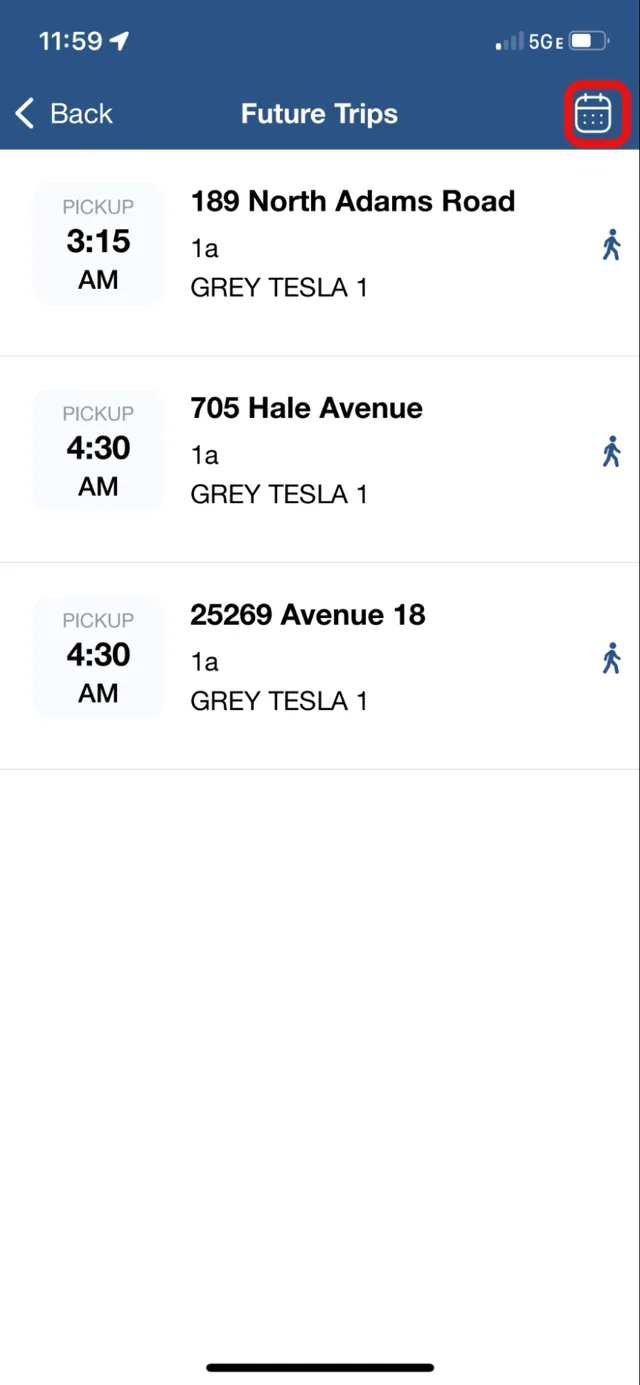
4. If you want to review trips assigned to you on other future dates, tap the calendar icon at the top right, and tap the date you want to view.
Note: tapping a specific date will highlight the entire week of that date.
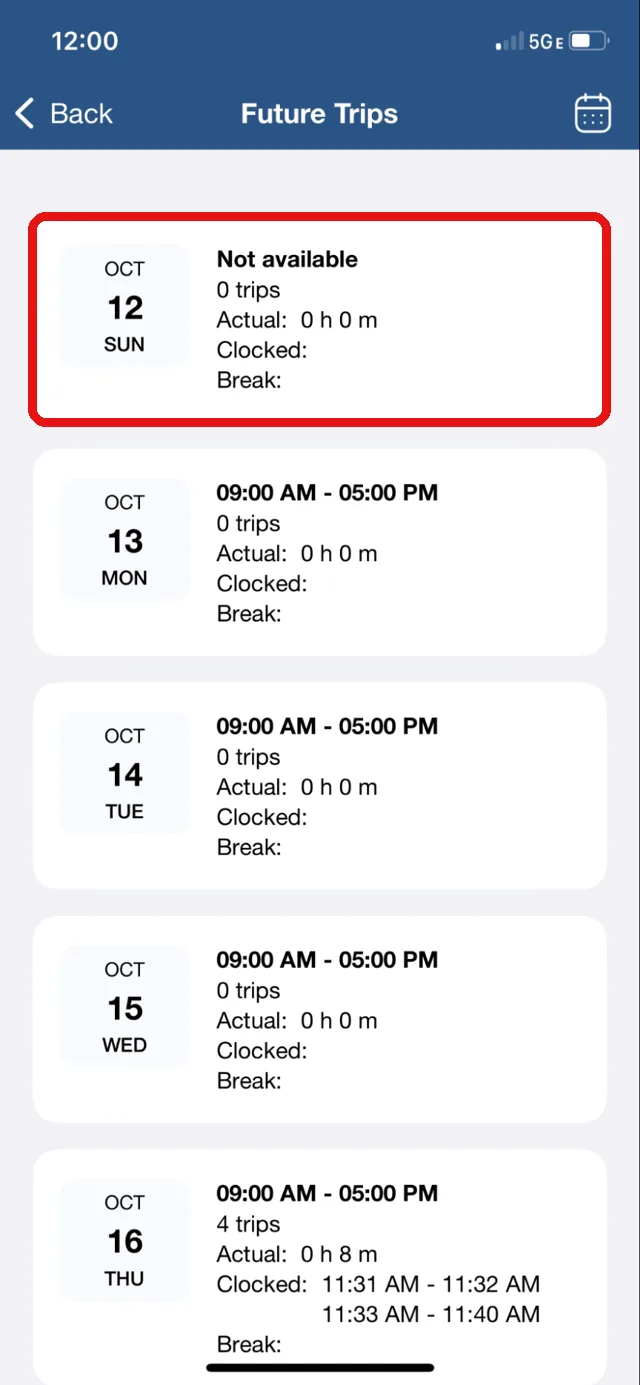
5. Doing so takes you to the Future Trips screen. You can see a summary of the week of your selected date.
You can tap the block for any date to review the trips assigned to you for that date.
Note: after you finish reviewing the trips, you will need to go back to the home screen, the Trip Dashboard.
Revisa tus viajes para mañana o una fecha futura en tu cuenta de la app Duet Driver
Después de que tus despachadores terminen de programar los viajes para mañana, te avisarán para que revises tus viajes en la app.
Audio no disponible. Inténtalo de nuevo más tarde.
1. En el “Trip Dashboard” o pantalla de inicio, toca el icono del menú (arriba a la izquierda) y selecciona “Schedule & Clock in/out”.
O bien, puedes ver el texto “Your schedule today” y tus horas en la parte inferior. Toca el texto de color azul oscuro (las horas).
Si no estás programado para horas específicas, verás el texto “Not scheduled yet” en lugar de horas específicas. Aún puedes tocar el texto en azul oscuro.
2. Al hacerlo, irás a la pantalla “My Schedule”. Puedes ver dos bloques en la pantalla: uno es tu horario para hoy y el otro es tu horario para mañana.
Toca la flecha en el bloque “Tomorrow”.
3. Al hacerlo, accederás a la pantalla “Future Trips”, con la fecha en la parte superior. Puedes ver todos los viajes asignados para mañana.
Al tocar cualquier viaje, irás a la pantalla “Trip Detail”, donde puedes revisar los detalles del viaje.
Nota: no podrás actualizar el estado del viaje para ningún viaje futuro.
4. Si quieres revisar los viajes asignados en otras fechas futuras, toca el ícono del calendario en la parte superior derecha y luego toca la fecha que quieres ver.
Nota: al tocar una fecha específica, se resaltará toda la semana de esa fecha.
5. Al hacerlo, irás a la pantalla “Future Trips”. Puedes ver un resumen de la semana de la fecha que seleccionaste.
Puedes tocar el bloque de cualquier fecha para revisar los viajes asignados a ti para esa fecha.
Nota: después de revisar los viajes, tendrás que volver a la pantalla de inicio, el Trip Dashboard.