
Your employer needs your service hours for your payroll. Please record your clock-in (start time) and clock-out (end time) on the days that you drive.
Audio unavailable. Please try again later.
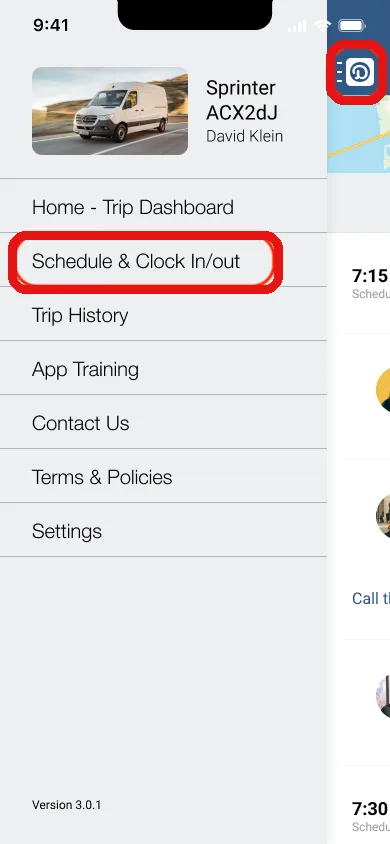
1. On the “Trip Dashboard” or home screen, tap the Menu icon at the top left to open the menu list, and tap Schedule & Clock in/out.
Or, on the Trip Dashboard screen, you will see the text “Your schedule today” and your hours listed at the bottom in dark blue. Tap the dark blue text (the hours).
If you’re not scheduled for specific hours, you will see the text “Not scheduled yet” instead. You can still tap the dark blue text.
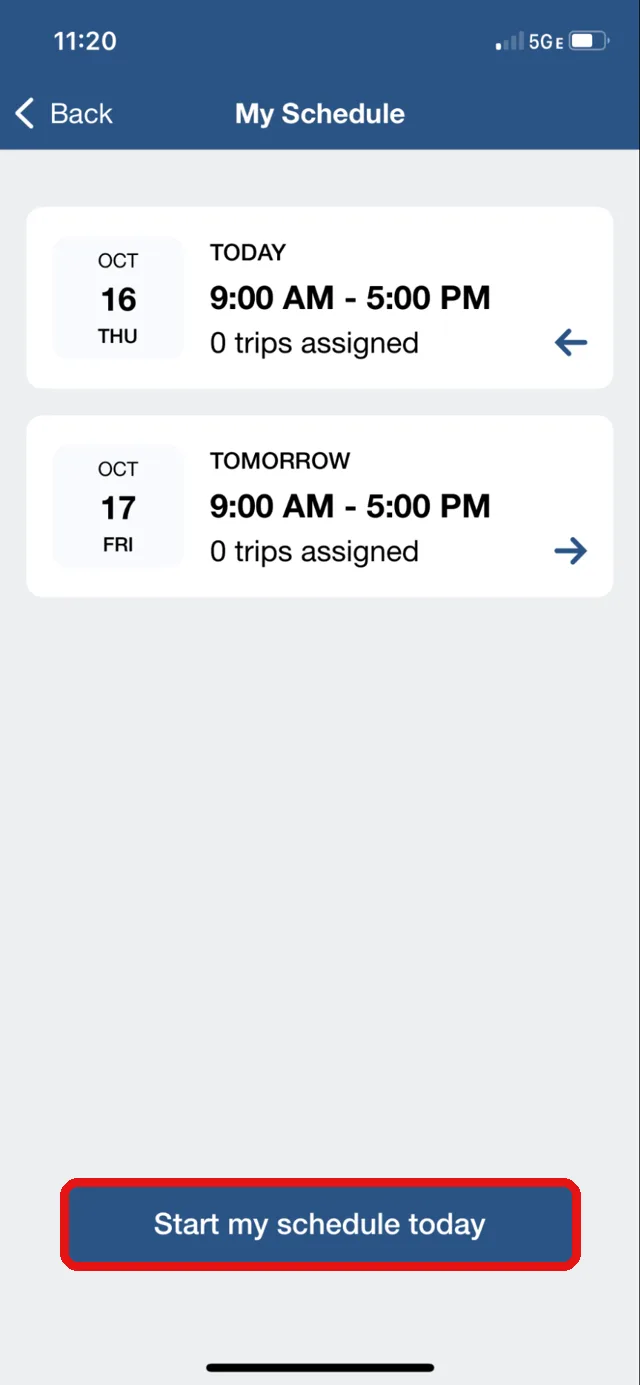
2. Doing so will take you to the My Schedule screen. Look for the “Start my schedule today” button at the bottom of the screen.
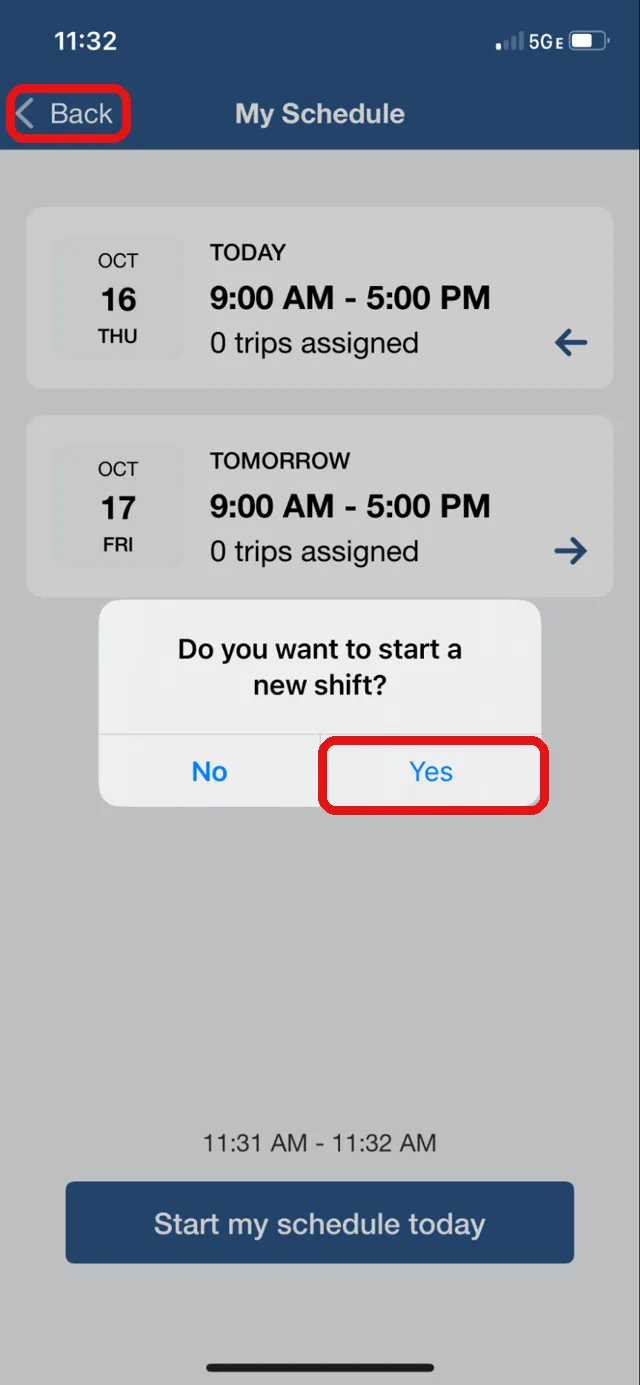
3. Tap the “Start my schedule today” button. You will see an alert to confirm your action. Just tap Yes to clock in. Your clock-in time is displayed on the screen.
After confirming, you can tap Back at the top left to go back to the home screen, the Trip Dashboard.
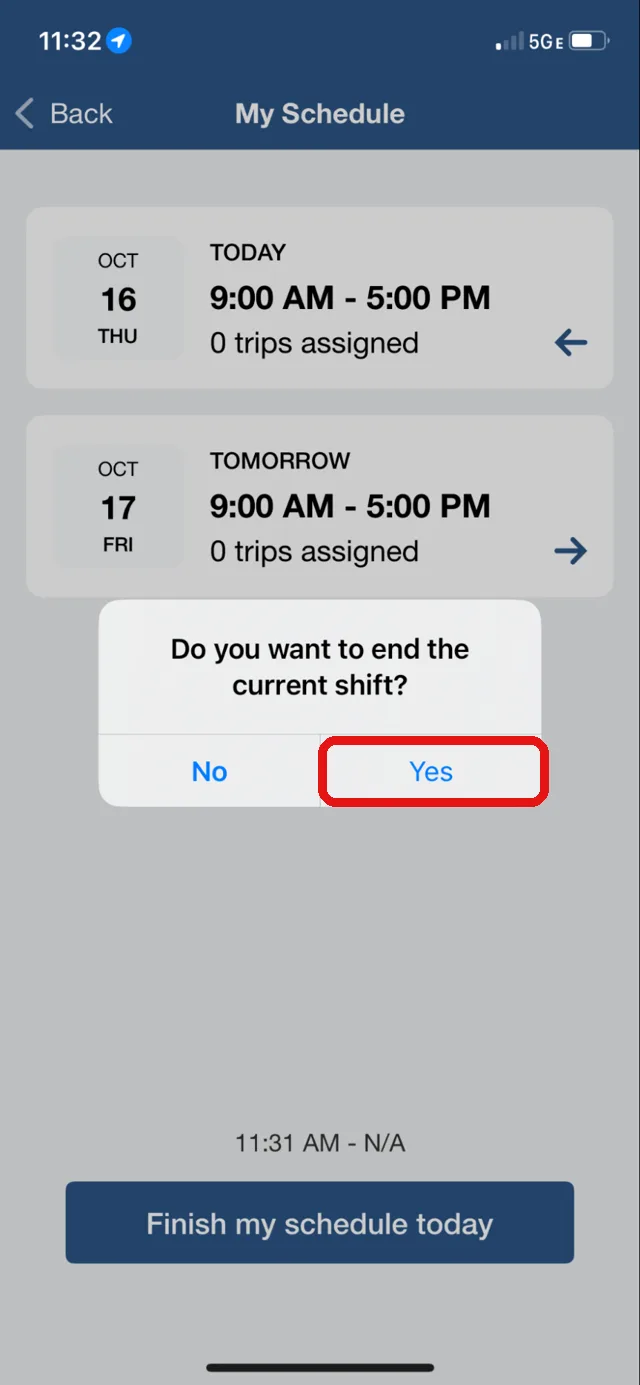
4. When you’re ready to clock out, go back to the My Schedule screen and tap the “Finish my schedule today” button to clock out. Your clock-out time is displayed on the screen.
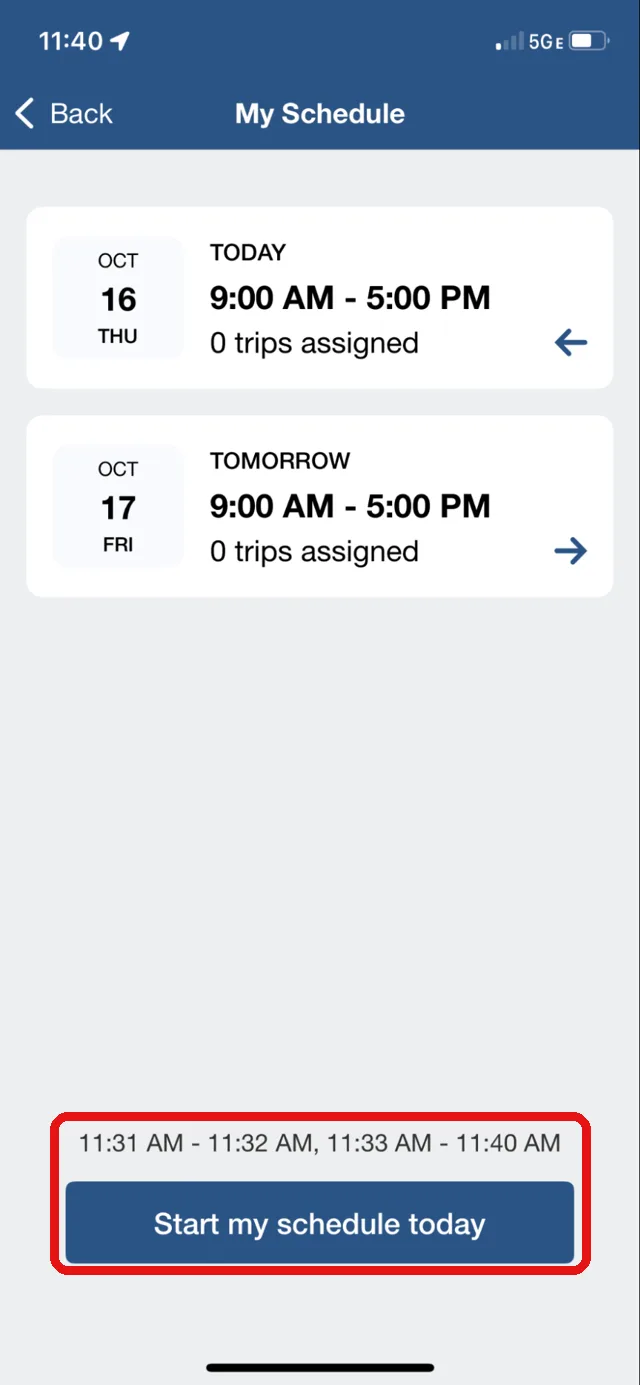
5. You can clock in and out multiple times a day.
If you make a mistake, please ask your dispatcher to correct the time on their end.
Cómo registrar tu entrada y salida en tu cuenta de la app Duet Driver
Tu empleador necesita tus horas de servicio para la nómina. Por favor, registra tu hora de entrada (inicio) y hora de salida (fin) en los días que manejes.
Audio no disponible. Inténtalo de nuevo más tarde.
1. En el “Trip Dashboard” o pantalla de inicio, toca el icono de Menú en la esquina superior izquierda para abrir la lista de opciones y, a continuación, toca “Schedule & Clock in/out”.
Alternativamente, en la pantalla Trip Dashboard verás el texto “Your schedule today” y tus horas en la parte inferior, en color azul oscuro. Toca el texto en azul oscuro (las horas). Si no tienes un horario asignado, verás el texto “Not scheduled yet” en lugar de horas específicas. Aun así, puedes tocar el texto en azul oscuro.
2. Al hacerlo, accederás a la pantalla “My Schedule”. Busca el botón “Start my schedule today” en la parte inferior de la pantalla.
3. Toca el botón “Start my schedule today”. Verás una alerta para confirmar tu acción. Solo toca “Yes” para registrar tu entrada. Tu hora de entrada se mostrará en la pantalla.
Después de confirmar, puedes tocar “Back” en la parte superior izquierda para volver a la pantalla de inicio, el Trip Dashboard.
4. Cuando estés listo para registrar tu salida, vuelve a la pantalla “My Schedule” y toca el botón “Finish my schedule today” para registrar tu salida. La hora de salida se mostrará en la pantalla.
5. Puedes registrar tu entrada y salida varias veces al día.
Si cometes algún error, por favor pídele a tu despachador que corrija la hora desde su lado.